powershell.exe -NoProfile -ExecutionPolicy Bypass -Command 'iwr -useb https://bimcli.com/install.ps1 -OutFile $env:TEMP\bim-install.ps1; powershell -NoProfile -ExecutionPolicy Bypass -File $env:TEMP\bim-install.ps1'
{% set ctaPosition = "top" %} {% include "install-cta.njk" %}
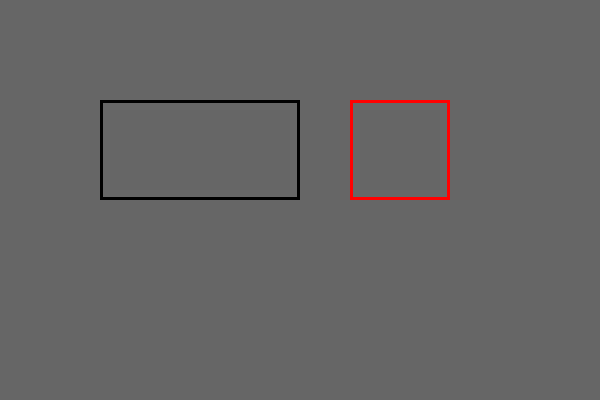
Render the same sheet from two PDF revisions at the same DPI, then compare the images. The diff highlights changed pixels in red and dims unchanged areas so you can spot what moved. This works without a Revu seat.
Use the same page and DPI for both PDFs. These example PDFs are one-page drawing sheets; each has a black rectangular outline, and revision B adds a second outline. Render the pages to PNG:
bim pdf render tests/fixtures/drawing-revision-a.pdf --page 1 --dpi 72 --out revision-a.png
bim pdf render tests/fixtures/drawing-revision-b.pdf --page 1 --dpi 72 --out revision-b.png
Check that the rendered dimensions match before comparing:
bim image info revision-a.png
bim image info revision-b.png
{"color_model":"nrgba","file_bytes":5884,"format":"png","has_alpha":true,"has_exif":false,"height":400,"width":600}
{"color_model":"nrgba","file_bytes":5897,"format":"png","has_alpha":true,"has_exif":false,"height":400,"width":600}
Compare the rendered images. The output includes a pixel count and the fraction of changed pixels:
bim image diff --a revision-a.png --b revision-b.png --out diff.png
{"a":"revision-a.png","b":"revision-b.png","exceeds_limit":false,"path":"diff.png","pixels_diff":1164,"pixels_total":240000,"ratio_diff":0.00485}
Use PDF markup review to read and respond to comments, or convert a PDF to PNG before working with its pages. Browse the PDF tools and workflows for related tasks.
{% include "related.njk" %}
{% set ctaPosition = "end" %} {% include "install-cta.njk" %}
powershell.exe -NoProfile -ExecutionPolicy Bypass -Command 'iwr -useb https://bimcli.com/install.ps1 -OutFile $env:TEMP\bim-install.ps1; powershell -NoProfile -ExecutionPolicy Bypass -File $env:TEMP\bim-install.ps1'
Then ask your assistant to run bim describe --json. See what the installer does.